Windows normally makes all available CPU cores available to applications automatically. To use more CPU cores, first check whether cores are actually missing or whether the program simply cannot use them. Do not select a processor count in MSConfig as a performance tweak: that setting can restrict the processors Windows uses.
A game using only part of the CPU is not proof that cores are disabled. A single busy thread, a graphics limit, or an application waiting for data can leave other cores lightly loaded. Diagnose the count and the workload separately before changing firmware or boot settings.
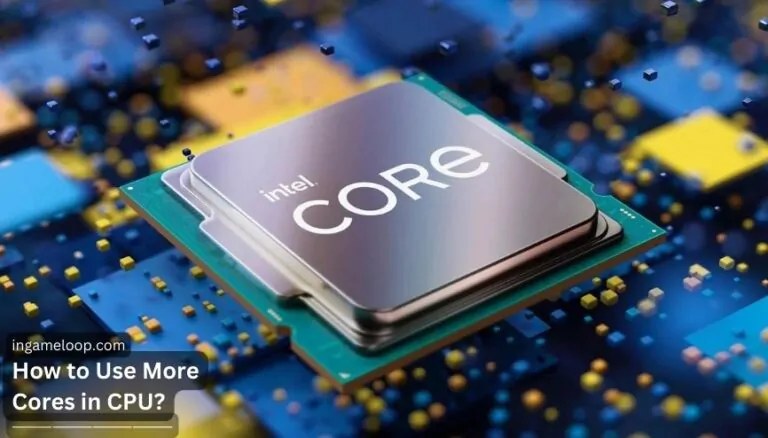
Check how many cores Windows can see
Press Ctrl + Shift + Esc to open Task Manager, then choose Performance → CPU. Record the exact processor model and the values for Cores and Logical processors. Compare those with the processor manufacturer's specifications, including the complete model suffix.
Where Task Manager offers it, right-click the CPU graph and choose Change graph to → Logical processors. Those smaller graphs show activity; the counts identify what Windows recognizes. An idle graph is not the same as a missing processor.
| Observation | Likely next step |
|---|---|
| Core and thread counts match the specifications | Investigate the application and workload |
| Physical cores match, but thread count is lower | Check whether SMT is supported and enabled |
| Both counts are unexpectedly low | Look for an existing boot restriction or disabled firmware setting |
| Counts are correct on the host but lower inside a virtual machine | Check the VM's assigned virtual processors |
| One program sees fewer resources than Windows | Check its settings, affinity, version, and documented limits |
Use “likely” literally here: these observations narrow the investigation but do not establish the fault on their own.
Physical cores and logical processors are different
A physical core contains hardware that executes instructions. A logical processor is an execution context that the operating system can schedule work onto. Simultaneous multithreading, or SMT, can expose more than one logical processor per physical core while sharing that core's resources.
Intel calls its implementation Hyper-Threading. Intel's explanation describes two execution contexts per supported physical core. That does not turn one core into two complete independent cores or guarantee twice the performance.
Do not assume threads always equal twice the core count. Hybrid processors can combine different core types, and some models do not support SMT. Intel's hybrid-architecture documentation specifically notes that Core Ultra Series 2 does not include Hyper-Threading. Check the exact product rather than searching for a setting it does not have.
Remove an accidental MSConfig limit
Only investigate this step if the count is wrong or you previously changed boot settings. Save work and record the current setting before editing it.
- Press Windows + R, type
msconfig, and press Enter. - Open Boot, select the Windows installation you use if more than one is listed, and choose Advanced options.
- If Number of processors is checked as an unintended restriction, clear the checkbox. Do not check it and choose the largest number as an “unlock.”
- Leave unrelated settings unchanged. Apply the change, restart, and compare the counts in Task Manager again.
Intel's missing-core support instructions explicitly use the unchecked setting. Microsoft documents the underlying numproc boot option as limiting the number of processors used.
A grayed-out “1” in an unchecked field is not a report that Windows is using only one core. If the field is already unchecked and the counts are correct, leave it alone.
If the PC no longer boots after an earlier boot-configuration change, use the system's documented Windows recovery process or obtain support. Do not copy a boot-database command that assumes the wrong installation or entry identifier.
Check firmware only when the count is still wrong
Some motherboards expose controls for active cores, SMT, Hyper-Threading, or individual hybrid core types. Their names and availability differ. Consult the exact board or PC manual and restore an inadvertently disabled setting to its documented default.
Do not reset every firmware option solely to search for missing cores. A broad reset may also change boot or storage settings. Likewise, do not disable efficiency cores or security features based on a generic gaming tweak.
If the mismatch began after a processor upgrade, confirm that the exact CPU appears on the motherboard's support list with the installed BIOS version. The guide to checking CPU and motherboard compatibility explains that distinction.
Help the application use the resources it supports
Once Windows reports the correct count, focus on the software. Look for a documented thread limit, worker count, CPU-rendering option, or multithreaded setting. A program using GPU acceleration may intentionally leave much of the CPU idle.
Compare the same job before and after changing one supported setting. Measure the outcome you want: render time, simulation speed, or game frame times. A fuller utilization graph is not an improvement if the job takes just as long or becomes less responsive.
AMD's performance guidance notes that software workload determines how effectively a processor's cores and threads can be used. Some tasks have stages that cannot run in parallel. Adding available threads does not remove those dependencies.
If you previously restricted the application through CPU affinity or an optimization utility, return it to its normal allowed processor set. Affinity determines where a thread may run; it does not rewrite an application to create more threads. Avoid imposing a custom affinity on a game without a specific, reproducible reason.
For workstations with more than 64 logical processors, check application and OS documentation. Microsoft describes changes in Windows 11 that allow default process affinity to span processor groups. Software assumptions and explicit limits can still matter. This is a different problem from a typical gaming desktop with an unchecked MSConfig field.
What this means for gaming
Games divide work differently. Rendering preparation, simulation, audio, asset handling, and background tasks may not all scale with core count. The CPU can limit a game even when its overall utilization is below 100%, because an important thread may be holding up the next frame.
That does not mean every low-utilization game needs a processor upgrade. Check frame-rate caps, graphics load, game settings, and repeatable performance before buying. See how the CPU affects FPS for the broader interaction, and how many cores gaming needs for purchase considerations.
Frequently asked questions
Should every core show the same utilization?
No. Threads perform different work and the scheduler can move them. Uneven graphs are common and do not, on their own, show a fault.
Can a utility unlock cores that my processor does not have?
No general Windows setting can add physical cores. Restore disabled supported resources when appropriate; do not confuse that with changing the processor's hardware specifications.
Does setting High priority make a program use more cores?
No. Scheduling priority affects access to processor time; it does not make serial code parallel. Avoid Realtime priority as a gaming tweak because it can interfere with other work the system needs to perform.
If the counts are correct but performance is still poor, stop changing core settings. Investigate the actual workload and unexpected CPU usage with a repeatable example.