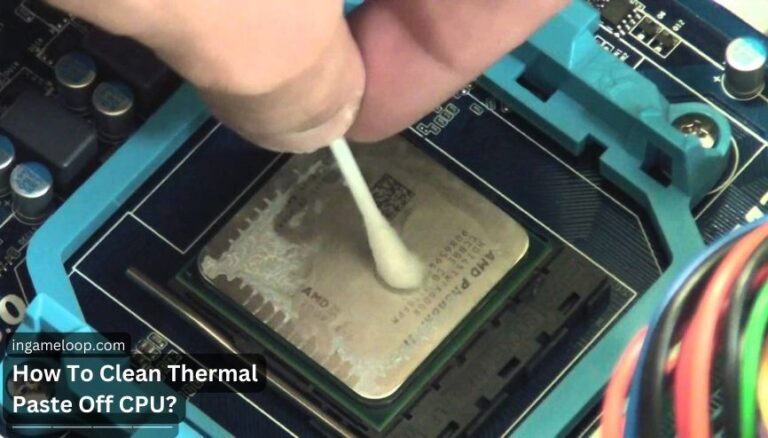
To clean thermal paste off a CPU, disconnect power, remove the cooler according to its manual, and wipe the metal heat spreader with a lint-free cloth lightly moistened with suitable isopropyl alcohol. Clean the cooler base too, let both surfaces dry completely, then apply fresh paste and reinstall the cooler.
This procedure is for ordinary thermal paste on a desktop CPU with a metal lid. Liquid metal, exposed silicon dies, thermal pads, and paste inside a socket require different handling. Identify the material and the surfaces before starting; the whole processor is not a washable component.
Gather the supplies before removing the cooler
| Item | Purpose |
|---|---|
| CPU cooler's installation manual | Shows the correct release mechanism, mounting order, and cable connections |
| Clean lint-free wipes | Lift off paste without leaving loose fibers |
| Suitable isopropyl alcohol | Helps remove remaining paste and grease from the contact surfaces |
| Correct screwdriver, if required | Releases and reinstalls the cooler's mounting hardware |
| Fresh compatible thermal interface material | Replaces the disturbed layer between CPU and cooler |
| Good lighting and appropriate ESD protection | Help you see contamination and handle electronics carefully |
Corsair specifies 90% or higher IPA for its general CPU-cleaning procedure. Choose a plain product without fragrance or skin-conditioning additives. If you only have a lower concentration, read the separate guide to 70% isopropyl alcohol for CPU cleaning before proceeding.
Prefer lint-free material over toilet paper that tears or sheds. Keep dirty wipes away from the cleaned parts. Do not use nail-polish remover as a generic substitute: its formulation and compatibility are not established by its ability to dissolve paste.
Remove the cooler without pulling out the processor
1. Shut down and disconnect power
Save your work, shut down normally, switch off the PSU if it has a switch, and unplug the power cable. Give hot components time to become safe to handle. Use a stable work surface and suitable electrostatic-discharge precautions.
Photograph the cooler's cable connections before disconnecting them. A cooler may have separate fan, pump, USB, lighting, and power leads; their jobs are different. Do not pull a connector by its wires.
This desktop procedure does not cover disconnecting an internal laptop battery. For a laptop, follow the exact model's service manual before touching its cooling assembly.
2. Release the mounting hardware
Follow the cooler's instructions for screws, clips, or push pins. Support any loose backplate and heavy heatsink. A liquid cooler's block can often be removed from the CPU without opening the coolant loop; do not disconnect coolant fittings for a repaste.
If the cooler resists lifting, stop and check for an unreleased fastener or hardened paste. Do not lever it off with a screwdriver.
For the AM4 coolers covered by AMD's removal guide, AMD describes gently twisting the released cooler to break the paste's seal before lifting. Its instructions also discuss warming hardened paste by running an otherwise functioning system beforehand. Any such preparation happens with the cooler fully installed, before shutdown and before alcohol is introduced. It is not an instruction to power a partly dismantled PC.
Keep the CPU seated and secured for lid cleaning when practical. If it has come out attached to the cooler, stop and resolve that situation with the platform's handling guidance rather than forcing it back into the socket.
Wipe the two contact surfaces
3. Lift away the old paste
Use a clean wipe to collect the bulk of the paste from the CPU lid. Apply gentle pressure and change to a clean section frequently. Avoid dragging paste over the lid's edge onto the small surrounding components.
The target is the metal heat spreader and the cooler base that touches it. You are not cleaning inside the processor. Do not remove the lid, scrape its markings, or scrub socket contacts to make them look new.
4. Remove residue with a dampened wipe
Apply a small amount of IPA to the wipe away from the computer. It should be damp enough to loosen residue without dripping. Wipe the CPU lid, then use a fresh section or separate wipe on the cooler base.
For stubborn paste, repeat the gentle cleaning rather than increasing force. Do not use metal blades or abrasive pads. The useful principle in iFixit's thermal-paste procedure is controlled cleaning of both mating surfaces, avoiding damage to adjacent components and allowing complete drying.
Inspect the edges and surrounding area under good light. If paste entered the socket, stop: the answer depends on its electrical properties and the socket design. A bent contact from an improvised cleaning attempt can be a bigger problem than the original spill.
5. Let the cleaning liquid dry completely
Do not apply new paste over a wet surface. There is no universal one-hour wait or two-minute shortcut. The endpoint is complete evaporation and clean surfaces, with no trapped liquid or loose material.
Cleaning-solvent drying is different from a thermal compound's curing or break-in behavior. For example, Noctua states that NT-H1 needs no break-in or burn-in. Follow your compound's instructions rather than waiting for fresh paste to “dry” before mounting the cooler.
Apply fresh material and reinstall the cooler
Thermal paste fills small gaps between the CPU lid and cooler to help heat transfer. It is not a thermal insulator, and more is not automatically better.
Intel advises replacing disturbed thermal interface material rather than adding new material over old paste. If a new cooler already has intact pre-applied material, follow its instructions instead of adding a second layer.
Use the amount and application pattern specified for your processor and paste. A central dot is one method, not a universal quantity for every lid size. Mount the cooler evenly using its prescribed sequence and fastening limits, then reconnect the required power and control leads.
After reassembly, start the computer and verify that cooling is operating. Check CPU temperature first under light activity, then during a familiar workload. If the temperature climbs rapidly toward the model's limit, shut down and check the mount and connections. Do not assume it needs a lengthy “settling in” period.
Frequently asked questions
Do I need to remove thermal paste every year?
No single schedule fits every compound and system. Follow its guidance, replace it when disturbing the cooler, and investigate a sustained change in temperature before assuming the paste is responsible.
Is a faint mark on the metal a reason to keep scrubbing?
The goal is removing residue and contamination, not polishing the lid. If gentle cleaning no longer lifts material, avoid abrasive work and check the cooler or paste manufacturer's advice about remaining discoloration.
Can I use the same process for liquid metal?
No. Use the liquid-metal product's specific removal instructions. Its electrical conductivity and compatibility concerns make a general paste-wiping procedure insufficient.
If cooling remains poor after a correct remount, continue with CPU temperature troubleshooting. Repeatedly removing an otherwise sound cooler is not a substitute for diagnosing airflow, fan operation, or power settings.