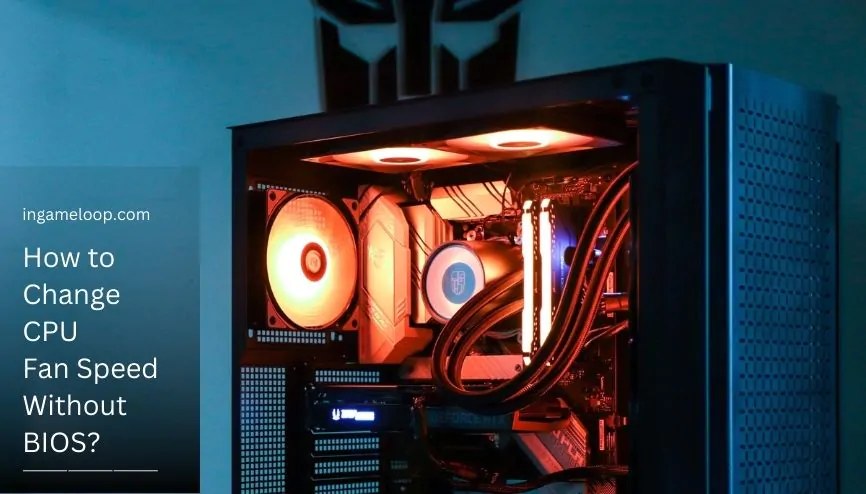
You can change CPU fan speed without BIOS using a supported motherboard utility, compatible fan-control software, or a suitable hardware controller. It works only when the software can control the header or controller powering that fan. A program that displays fan RPM does not necessarily let you change it.
Start with the software listed for your exact motherboard or complete PC. If you want a quieter computer, establish its current temperatures before lowering fan speed. If it is overheating, a faster fan may help, but a loose cooler or failed pump needs a different fix.
Choose a method your hardware supports
| Your setup | First option to check | Main limitation |
|---|---|---|
| Desktop fan connected to the motherboard | Board manufacturer's Windows utility | Support depends on the exact board and header |
| Desktop with supported sensor hardware | Fan Control or another compatible controller application | Detection and control are separate capabilities |
| Fans connected to a USB cooling controller | Controller manufacturer's software | May use proprietary connections or device profiles |
| Laptop or prebuilt PC | Manufacturer's thermal or performance modes | Custom fan curves may not be exposed |
| Fan connected only to fixed power | A compatible controllable connection or controller | Software cannot create a missing control circuit |
For example, ASUS documents Fan Xpert in Armoury Crate for supported boards. This is an example of a vendor-specific method, not an application to install on any motherboard.
Identify the CPU fan before moving a slider
Use the board's manual to locate CPU_FAN and trace the cooler's fan cable with the system shut down and disconnected. Do not confuse a fan-power connector with a lighting connector. If a hub or splitter is involved, find out which fans share its control signal and which fan reports RPM.
RPM means revolutions per minute. It is a measured speed, while a percentage in a controller is a command. A 50% command does not guarantee exactly half the maximum RPM.
A four-pin fan typically uses pulse-width modulation, or PWM. A three-pin fan may support speed control by varying its supply voltage, usually called DC mode, if the header or controller supports that method. Argus Monitor's hardware documentation explains that available control channels depend on the board and its monitoring hardware.
If the selected mode is wrong, Windows software may show a slider while the fan stays at one speed. Correcting the header mode can require a firmware setting on some boards. There is no universal software bypass for that limitation.
Use the motherboard's Windows utility first
Download the utility through the exact board or PC model's official support page. Run only one application that actively controls a given fan or cooling device, including any background services from an earlier utility.
For a supported ASUS setup, the documented sequence is to open Armoury Crate, select Fan Xpert, perform Auto Tuning, and then choose a preset or customize an individual fan. Begin with a standard profile and verify that the CPU fan responds. Other manufacturers use different menus; follow their model-specific instructions.
Save the existing configuration before editing it. Change one setting at a time so you can tell what affected noise or temperature. This also makes returning to the original configuration straightforward.
Set up Fan Control on a compatible desktop
Fan Control's official release repository lists Windows 10 and Windows 11 support, guided setup, temperature sources, and configurable fan curves. It also explains that hardware compatibility depends on the underlying libraries and, for some devices, plugins. Installation alone does not prove your fan is supported.
Use this sequence once you have checked compatibility:
- Download from the official project and open the application with the permissions it requires.
- Detect sensors and controls before allowing a stop/start calibration on any channel. Exclude pump controls from fan calibration; if you cannot identify or exclude them, stop and use the cooler manufacturer's utility. Keep an eye on CPU temperature and avoid heavy workloads during setup.
- Identify the CPU cooler's fan channel through its RPM response to a modest speed increase. Label it clearly. Do not identify an unknown pump channel by slowing or stopping it.
- Select an appropriate CPU temperature source for an air cooler. A liquid-cooling controller may use coolant temperature for radiator fans; follow that device's instructions.
- Create a curve that increases cooling as temperature rises and assign it through the identified control card's curve selector. Pair its speed sensor when required. Keep a minimum speed that reliably starts and sustains the actual fan.
- Save the configuration, test it, and only then arrange startup behavior if you want the program to manage cooling each session.
The Fan Control documentation explains curves, calibration, response time, and hysteresis. Hysteresis prevents constant speed changes when a temperature fluctuates around a switching point. Use modest smoothing to reduce annoying surges without hiding a sustained temperature increase.
There is no universal “40% at idle, 100% at 70°C” rule. The right curve depends on the processor's limits, cooler, fan, case, and noise tolerance. Monitor CPU temperature during use rather than copying settings from an unrelated build.
Test normal operation and the fallback
First check light activity, then run a familiar game or application while watching temperature, fan RPM, and performance. A quiet idle result is not enough. Revert the change if cooling deteriorates or the fan fails to restart reliably.
Also check what happens after restarting Windows, waking from sleep, and exiting the controlling application. Different devices may retain a last command or return to another control mode. Keep a suitable firmware or device fallback; do not assume a Windows program runs before login or after it crashes.
If RPM rises but temperature remains unusually high, follow the CPU temperature troubleshooting guide. Fan speed cannot correct every mounting, airflow, or coolant-flow problem.
When a separate controller makes sense
A hardware controller can help when the current fan connection lacks usable control. Before buying, verify fan connector compatibility, PWM or voltage-control support, current limits per channel and in total, temperature inputs, and behavior if software stops.

Example of a six-channel manual fan controller.
Check the motherboard's CPU-fan monitoring requirement too. Moving the fan to another device can remove the tachometer signal the board expects. Follow both manuals rather than disabling a warning to conceal a wiring mistake.
A controller is rarely the first purchase for a laptop. Laptop fans usually depend on proprietary embedded controllers; use the manufacturer's supported thermal modes. For a liquid cooler, treat pump control and radiator-fan control separately.
Frequently asked questions
Can HWMonitor change CPU fan speed?
CPUID describes HWMonitor as a monitoring program. Use it to inspect supported sensor readings, not as the CPU-fan control method in this guide.
Can Windows power settings set an exact RPM?
Power modes can change heat generation and influence the system's automatic cooling response. They are not a universal interface for entering a CPU-fan RPM or curve.
Why does a detected fan ignore my changes?
Possible causes include the wrong channel, unsupported control hardware, an incompatible PWM/DC mode, a fixed-power connection, or another application controlling the same device. Check those before replacing the fan.
Start with supported software, verify the physical fan it controls, and test both workload cooling and startup behavior. If the fan is already doing its job, inspect cooler and case airflow direction before adding more control hardware.