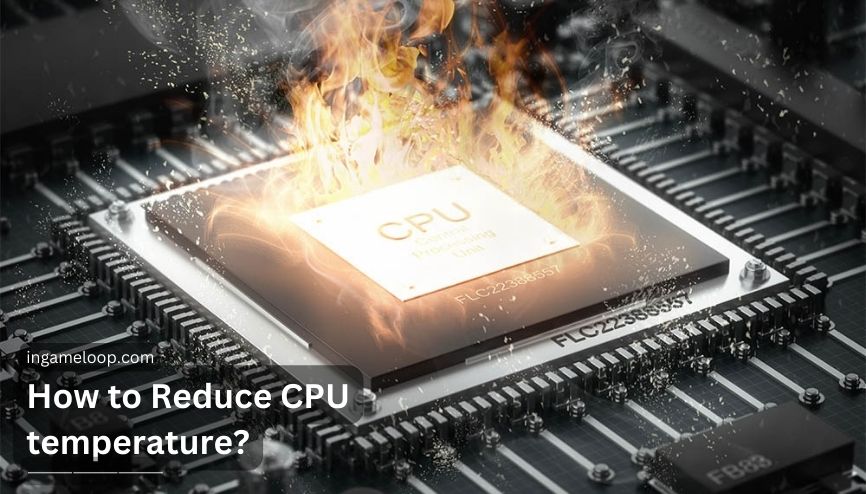
To reduce CPU temperature, first compare the reading with your exact processor's specifications and workload. Then check background activity, blocked ventilation, and fan operation. Restore inappropriate tuning settings before opening the PC. Inspect cooler mounting and thermal paste only if simpler checks fail, and replace hardware when the diagnosis supports it.
A brief temperature spike while a program opens is different from repeated thermal throttling during a game. Record what the computer is doing when it gets hot; that information is more useful than trying to make every processor stay below the same number.
Establish whether the temperature is abnormal
Find the complete CPU model, including its suffix. Check its official product page and, for a laptop or prebuilt, the system manufacturer's guidance. CPU package, individual core, socket, and motherboard readings are not interchangeable.
Intel explains that thermal limits vary by processor and that operating temperatures depend on workload and system design. Approaching a limit is not automatically evidence of permanent damage. However, repeated shutdowns or a large performance decline warrant investigation.
As one model-specific example, AMD lists a 90°C maximum operating temperature for the desktop Ryzen 9 5900X. Do not apply that number to every Ryzen processor. AMD Ryzen 9 5900X specifications.
Use a supported monitoring tool and keep the sensor choice consistent. Our guide to checking CPU temperature covers the initial reading. For diagnosis, note the room conditions, current and sustained CPU temperature, workload, fan speed, and any thermal-limit indicator.
Stop demanding tests if the computer repeatedly shuts down, the cooler is loose, a required fan or pump is not operating, or there is a leak or burning smell. Those conditions need repair before a longer stress test.
Use the symptom to choose your first check
| What you observe | Check first | What the result may mean |
|---|---|---|
| High temperature while apparently idle | CPU usage and background programs | The PC may be doing work you did not notice |
| A sharp rise immediately after a cooler installation | Mount, required connections, and protective film | A contact or installation fault is possible |
| Gradually worse temperatures over months | Filters, heatsink fins, fan operation, room conditions | Cooling or airflow may have deteriorated |
| High temperature only during a heavy sustained task | Model limits, power configuration, and throttling indicators | The cooler may be reaching its capacity under that workload |
| CPU and GPU both become hotter during gaming | Case ventilation and shared internal heat | Improving case airflow may help both components |
These are starting points, not proof that one component is faulty. Change one factor at a time and repeat the same workload to check the effect.
Start with changes that do not require disassembly
Check whether the CPU is actually idle
In Windows, open Task Manager with Ctrl + Shift + Esc and sort running processes by CPU usage. An update, game launcher, browser task, or background utility may explain unexpected activity. Save work before closing an application, and do not end unfamiliar system processes at random.
AMD's temperature troubleshooting guidance identifies background applications and custom settings as relevant factors. If an identifiable application is responsible, troubleshoot it or let legitimate work finish. High CPU usage during a render is expected; the cooling system should support the intended workload.
For unexplained sustained activity, continue with diagnosing high CPU usage.
Give the intake and exhaust room to breathe
Move a desktop away from blocked vents and enclosed spaces that recirculate its exhaust. Use a laptop on a firm surface that leaves its ventilation openings clear, following the manufacturer's placement guidance.
Compare like conditions. A warmer room can raise cooling temperatures without any hardware fault. Conversely, moving the PC into a cooler room while changing a fan curve makes it harder to tell which change helped.
Check power and tuning settings
If the problem appeared after overclocking or a motherboard “enhancement” setting, return that change to the manufacturer's documented stock configuration. Record existing settings first. Avoid a blanket firmware reset that could also alter storage, security, or boot settings unnecessarily.
A supported lower-power profile can reduce heat at the cost of some performance. Test whether it still meets your needs. Do not apply a universal voltage or blindly copy an undervolt; stability and available controls depend on the processor and platform.
A power-limit indicator is not automatically thermal throttling. Intel distinguishes electrical/current and power limits from temperature protection. Diagnose the reason for reduced clocks before changing a limit.
Inspect airflow and fan operation
Shut down and disconnect power before cleaning or moving internal cables. Follow the PC and cooler manufacturers' cleaning instructions. Focus on filters, vents, and heatsink or radiator fins; do not direct liquid cleaner over the motherboard.
For its fans, Noctua advises holding the blades still when using compressed air and avoiding excessive force. A sealed fan bearing is not something to dismantle during routine dust removal.
Look for a cable obstructing a fan and verify the intended airflow direction. More fans are not automatically better if they move air against one another or recirculate hot exhaust. Keep cables clear of blades without assuming tidy wiring alone will fix overheating.
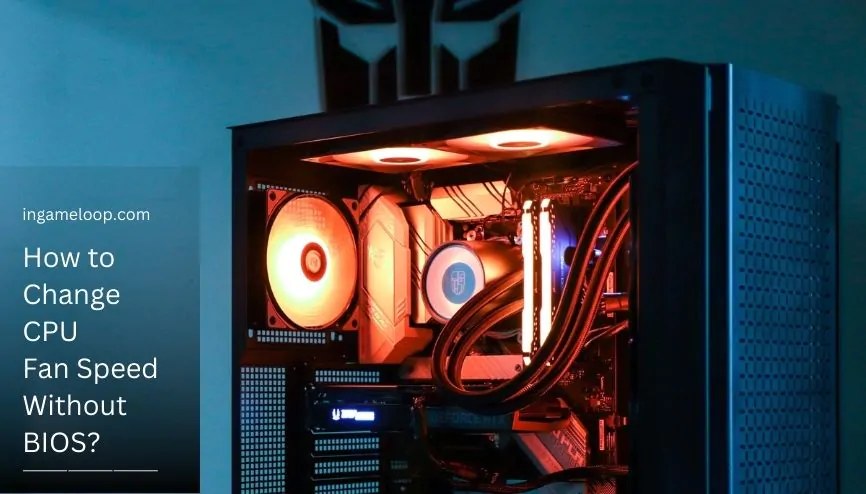
After reassembly, verify RPM and temperature response. The guide to changing CPU fan speed without BIOS explains supported Windows control methods. Keep an appropriate automatic curve rather than slowing the fan solely to silence a symptom.
Check the cooler mount and thermal interface
If the problem began immediately after a build or cooler change, mounting deserves early attention. Check the correct bracket and spacers, required protective-film removal, even fastening, and the manufacturer's fan and pump connections.
For an all-in-one liquid cooler, a detected RPM signal alone does not prove that coolant is moving properly. Follow the cooler's diagnostics if temperatures remain abnormal. Do not open a sealed loop or stop its pump as an experiment.
Repasting makes sense when the cooler has been removed, the interface is contaminated, or inspection and troubleshooting point to an interface problem. It is not a required annual cure for every warm PC. Use the thermal-paste removal procedure to clean the contact surfaces and apply the correct material.
Do not confuse thermal paste under the removable cooler with solder or another interface inside the CPU package. Delidding is outside routine cooling maintenance.
Decide whether an upgrade is justified
A replacement cooler is reasonable if the existing unit is faulty or cannot sustain your workload at acceptable noise and temperature in its intended configuration. Check socket mounting, motherboard clearance, RAM clearance, case height or radiator space, and the cooler maker's compatibility guidance.
Do not compare advertised cooler “TDP capacity” figures across brands as though they came from one standardized test. Also, a processor's advertised power rating is not a measurement of your complete PC's wall power.
Buy a new case only if restricted ventilation or physical fit is the established problem. A case swap will not repair a loose block, failed pump, or incorrect mounting hardware.
Frequently asked questions
Is a CPU temperature over 60°C always a problem?
No. The model, sensor, workload, and behavior matter. Use the exact processor's published limits and check for sustained performance problems instead of treating 60°C as a universal ceiling.
Should I leave the side panel off permanently?
That is not a complete cooling diagnosis. Check the case's intended airflow and filtration. An open panel also exposes components to dust and accidental contact.
Will a water cooler always run cooler than an air cooler?
No. Compare suitable individual coolers under relevant conditions, including noise. Their design, installation, case airflow, and workload matter more than the category label alone.
Finish by repeating the workload that caused the concern. A useful repair restores stable behavior at acceptable noise and temperature; it does not need to produce a universal idle number.